Why Can’t I Select Text in My PDF? The Ultimate Guide to Converting Scanned Documents to Word
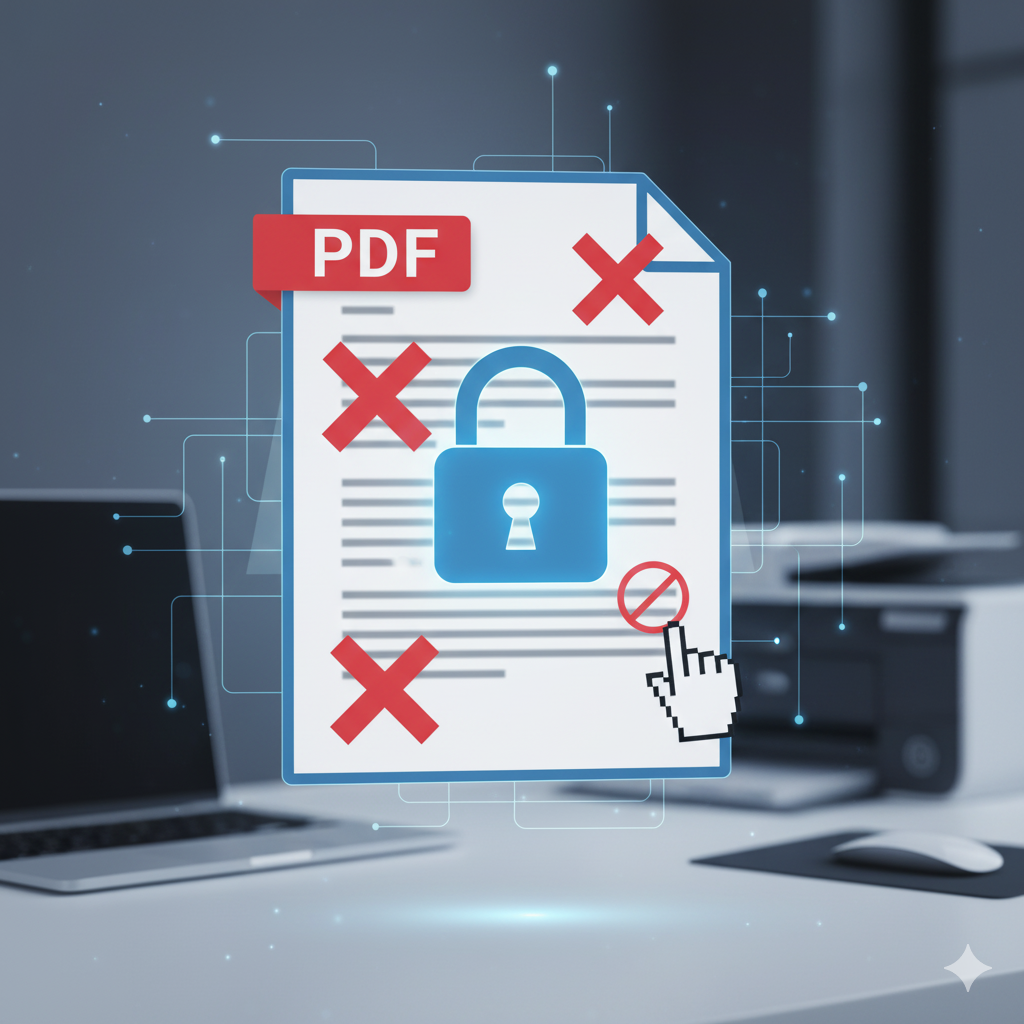
It’s one of the most common frustrations in the digital age. You have a PDF—a scanned contract, a textbook chapter, an old archive—and you desperately need to copy the text. But when you try to highlight it, all you get is that dreaded blue box. You’re dragging a rectangle over an image, not selecting text.
In reality, this isn’t a bug. It’s a fundamental misunderstanding of what your PDF file is.
So, why is your PDF “locked,” and how can you “unlock” it to get a fully editable, searchable, and copy-paste-ready Word document?
This comprehensive guide will explain the technology behind the problem and provide the definitive solution.
The Core Problem: Your PDF Isn’t Actually Text—It’s a Photograph
To solve this, you first need to understand that not all PDFs are created equal. There are two distinct types.
1. Text-Based (Native) PDFs
You (or a program) create these directly from software like Microsoft Word, Google Docs, or InDesign using a “Save As PDF” function. In these files, the software stores the text as text data. As a result, the computer knows that “A” is the letter “A”. You can select it, copy it, and search for it (Ctrl+F). These are easy to convert.
2. Image-Based (Scanned) PDFs
This is where your problem lies. When you place a physical piece of paper on a scanner, the scanner takes a photograph of that page. It then wraps that photograph inside a PDF container to make it easy to share.
Consequently, to your computer, this file is no different from a vacation photo. It doesn’t see letters, words, or paragraphs. It only sees a single image made of pixels. You can’t select the text in a scanned document for the same reason you can’t select the words on a stop sign in a photograph.
The Solution: What is OCR (Optical Character Recognition)?
So, if our document is just a “dumb” image, how do we make it “smart”?
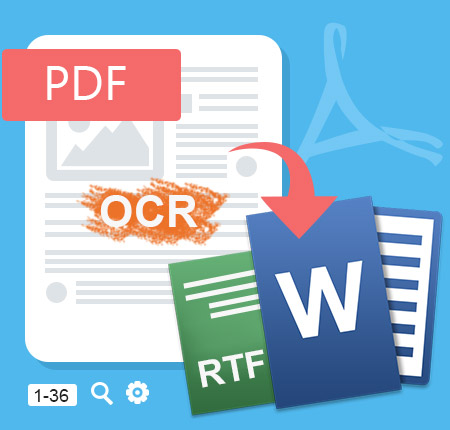
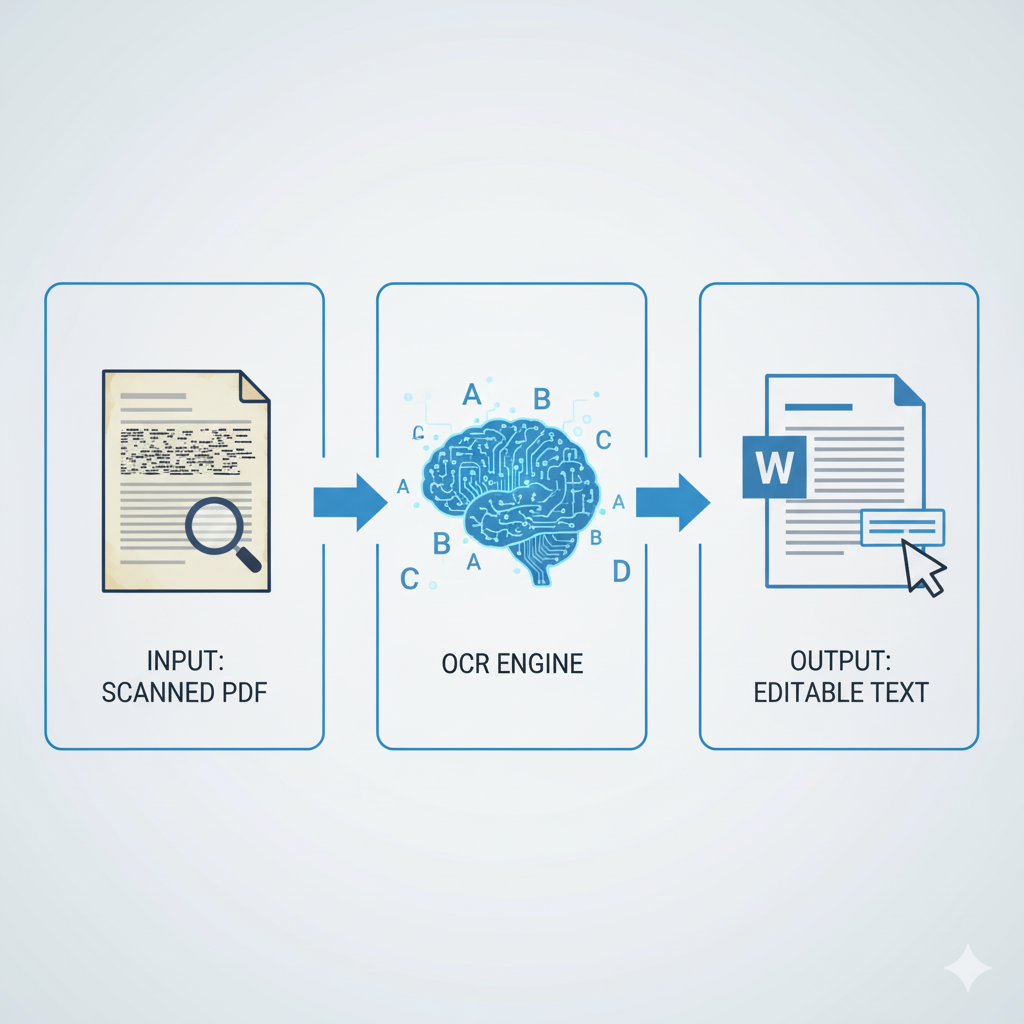
This is where the magic happens. The solution is OCR (Optical Character Recognition), a powerful technology designed to read the text within an image and translate it into actual, machine-readable text data.
How the OCR Process Works (Under the Hood)
When you upload your scanned PDF to an OCR-powered converter, it performs a complex analysis:
- Pre-processing: First, the software “cleans” the image. It straightens the page (deskew), removes digital “noise” (spots or speckles), and increases the contrast between the text and the background.
- Pattern Recognition: After that, the software scans the image, identifies shapes that look like characters (letters, numbers, punctuation), and matches these patterns to its internal database of fonts and characters.
- Contextual Analysis: Additionally, modern OCR is even smarter. If it’s unsure whether a shape is an “O” or a “0” (zero), it will analyze the context. If the shape is in the word “B00K,” it will intelligently correct it to “BOOK.”
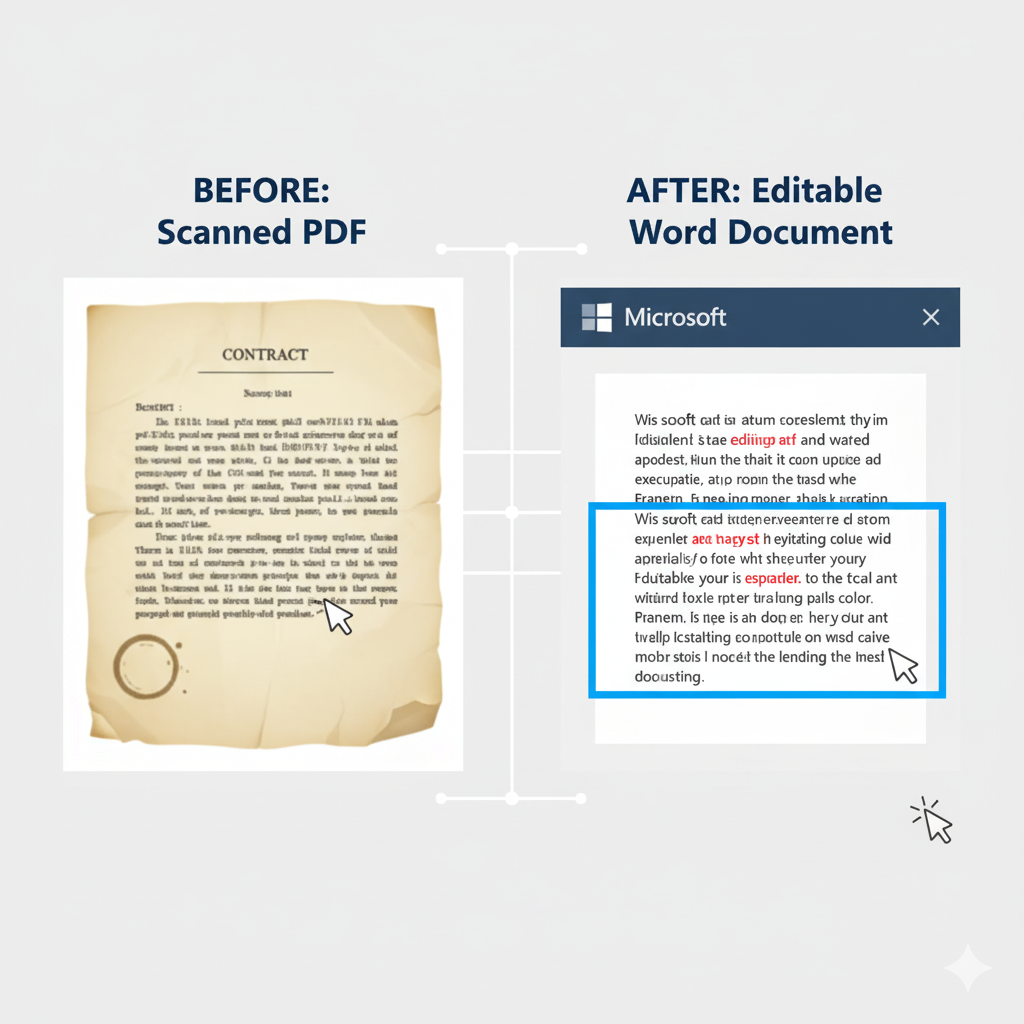
- Reconstruction: Finally, the system takes all this recognized text and reconstructs it into a new, fully editable document—like a Microsoft Word file—while attempting to preserve the original layout, columns, tables, and fonts.
Why Most “Free” PDF Converters Fail with Scanned Documents
Here’s a crucial secret: most free converters you find online do not have an OCR engine. They are “dumb” converters.
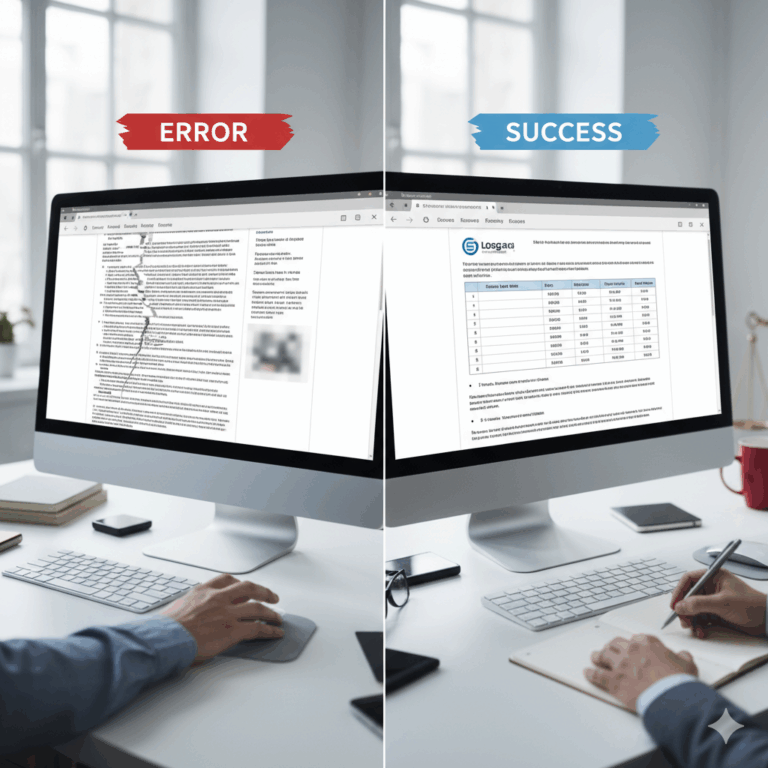
If you upload a scanned PDF to one of these tools, it will only extract the image layer (the photograph) and paste that single image into a blank Word document. Therefore, the result is a .docx file that is just as useless as your original PDF.
You must use a tool that explicitly states it uses OCR technology.
How to Convert a Scanned PDF to Editable Word (Step-by-Step)
Using an advanced OCR tool is simple. We designed pdf2word.net to handle this entire process for you automatically.
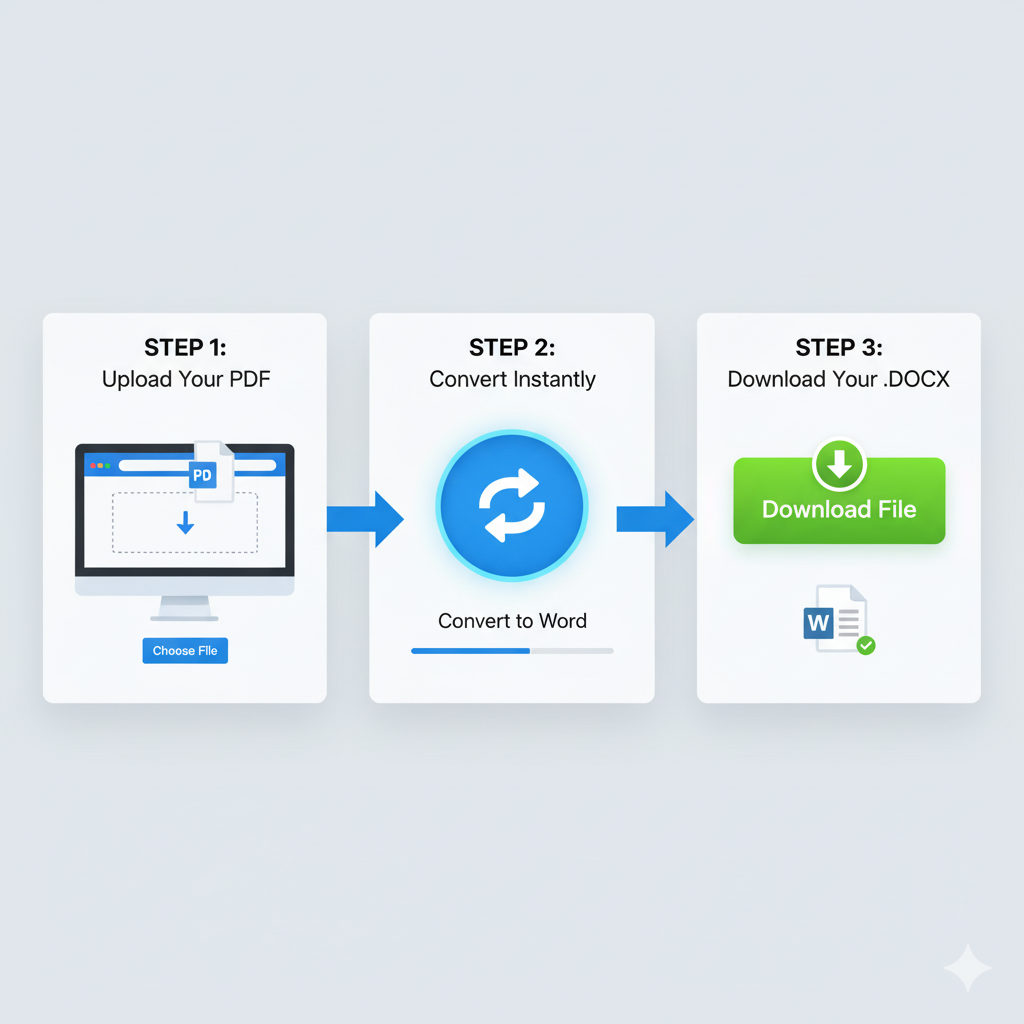
- Upload Your File: Drag and drop your scanned PDF (or even a .JPG or .PNG image file) into the conversion box on our site.
- Start the Conversion: Simply click “Convert.” Our system automatically detects that your file is scanned and activates the OCR engine. There are no complex settings to worry about.
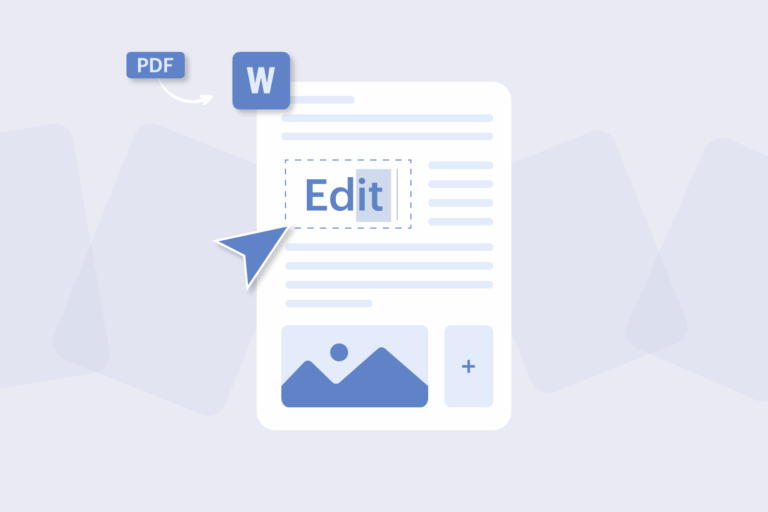
- Download and Edit: In seconds, your new, fully editable Word document will be ready. Download it, open it in Word, and watch as you can now select, edit, and delete text, just like any other document.
[>> Convert Your First Scanned PDF to an Editable Word Doc for Free – pdf2word.net<<]
Beyond Copy-Paste: The Real Benefits of OCR Conversion
Converting your scanned files isn’t just about fixing a minor annoyance. It unlocks the true potential of your information.
- Massive Time Savings: Stop retyping documents. Convert a 50-page report or contract in under a minute instead of spending hours manually transcribing it.
- Make Archives Searchable: Do you have an archive of old documents? Once converted via OCR, they become fully searchable. You can use Ctrl+F (Find) to locate any name, date, or keyword across thousands of pages.
- Edit and Update: Need to update an old contract, change a name on a form, or reuse a chapter from an old textbook? Now you can.
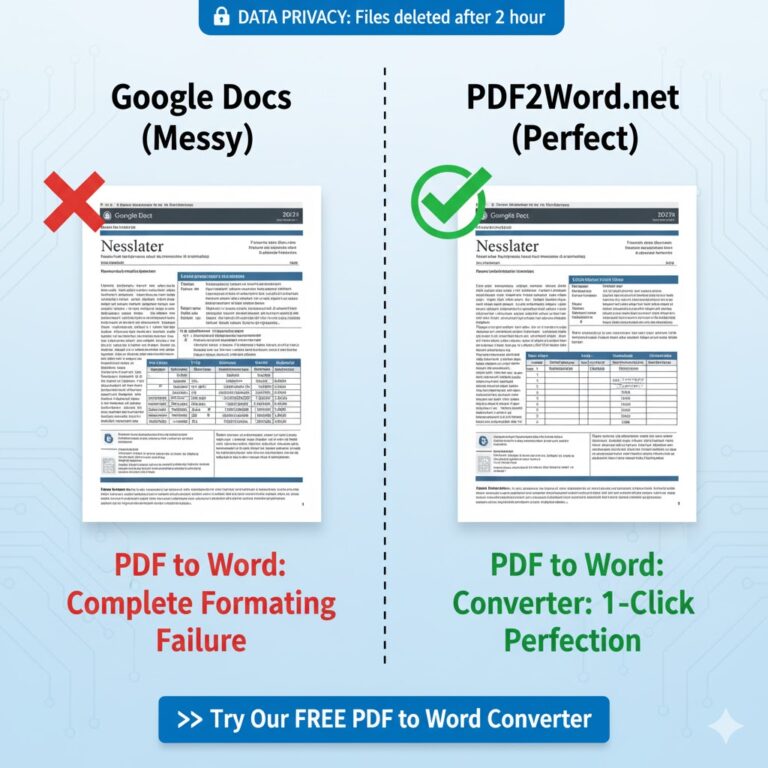
- Preserve Formatting: Furthermore, advanced OCR tools (like ours) are designed to recognize tables, columns, and layouts, preserving them in the final Word document.
- Accessibility: Finally, screen readers for the visually impaired cannot read image-based PDFs. Converting them with OCR makes your documents accessible to everyone.
Frequently Asked Questions (FAQ)
Q: Is OCR technology 100% accurate?
A: Modern OCR is incredibly accurate (often 99%+), especially with clear, machine-printed text. However, accuracy can decrease slightly with very old, faded documents, complex handwriting, or extremely unusual fonts. Our tool uses one of the most advanced engines available to ensure the highest possible accuracy.
Q: Do I need to install any software to use this?
A: Absolutely not. Our tool is 100% browser-based. You don’t need to download or install anything. Just upload your file directly to our secure website, and we handle the entire conversion process in the cloud. It works on Windows, Mac, Linux, or any operating system with a modern web browser.
Q: Is this service completely free? Are there any limitations?
A: Our standard converter is completely free for most user documents. We believe in providing this essential technology to everyone. On the other hand, for users with extremely large files (e.g., over 100MB) or a professional need for batch processing, we may offer premium plans, but for the vast majority of day-to-day documents, our free tool is all you need.
Q: Does this only work for scanned PDFs, or can I convert an image like a JPG?
A: Great question. It works for both. We designed our OCR engine to extract text from any image-based file. You can upload a scanned PDF, or a photo you took with your phone (like a .JPG, .PNG, or .TIFF file), and it will convert the text to an editable Word document.
Q: What happens to the tables, columns, and layout?
A: This is what separates basic OCR from advanced OCR. We specifically designed our tool to detect tabular data and complex layouts. It recreates them as actual editable tables and columns in your Word document, not just as jumbled plain text, preserving the original structure as closely as possible.
Q: What about the original images, headers, and footers in my PDF?
A: Our goal is high-fidelity conversion. The OCR process focuses on extracting and reconstructing the text, but it also identifies and places non-text elements. As such, the final Word document will include the original images, as well as headers and footers, placed in their correct positions.
Q: Does your OCR work for languages other than English?
A: Yes. Our advanced OCR engine supports a wide array of languages, including (but not limited to) Spanish, French, German, Italian, Portuguese, and many more. It can recognize special characters, accents (like ü, ä, ö, é, ñ), and different alphabets, making it a versatile tool for international users.
Q: Can OCR convert handwriting to text?
A: Yes, modern OCR (sometimes called ICR – Intelligent Character Recognition) can recognize clear, legible handwriting with a high degree of success. However, its accuracy heavily depends on the clarity and consistency of the writing style. It will perform much better on neat block letters than on cursive script.
Q: Is it safe to upload my sensitive documents?
A: Absolutely. We take data privacy and security as our highest priority. All files transferred to our servers use a secure, encrypted (HTTPS) connection. Furthermore, all files are automatically and permanently deleted from our system just 1 hour after conversion, ensuring your confidential information remains confidential. We never share or access your data.
Conclusion: Stop Retyping. Start Editing.
The next time you’re stuck with a PDF where you can’t select the text, remember: it’s not a “locked” file, it’s just an “image.”
And the solution is not to retype it all by hand. The solution is to use a powerful OCR converter to translate that image back into the living, editable, and searchable document it was always meant to be.
[>> Convert Your First Scanned PDF to an Editable Word Doc for Free – pdf2word.net<<]