Losing Your Mind Over Messy Conversions? 5 Common PDF to Word Formatting Errors (& How to Fix Them)
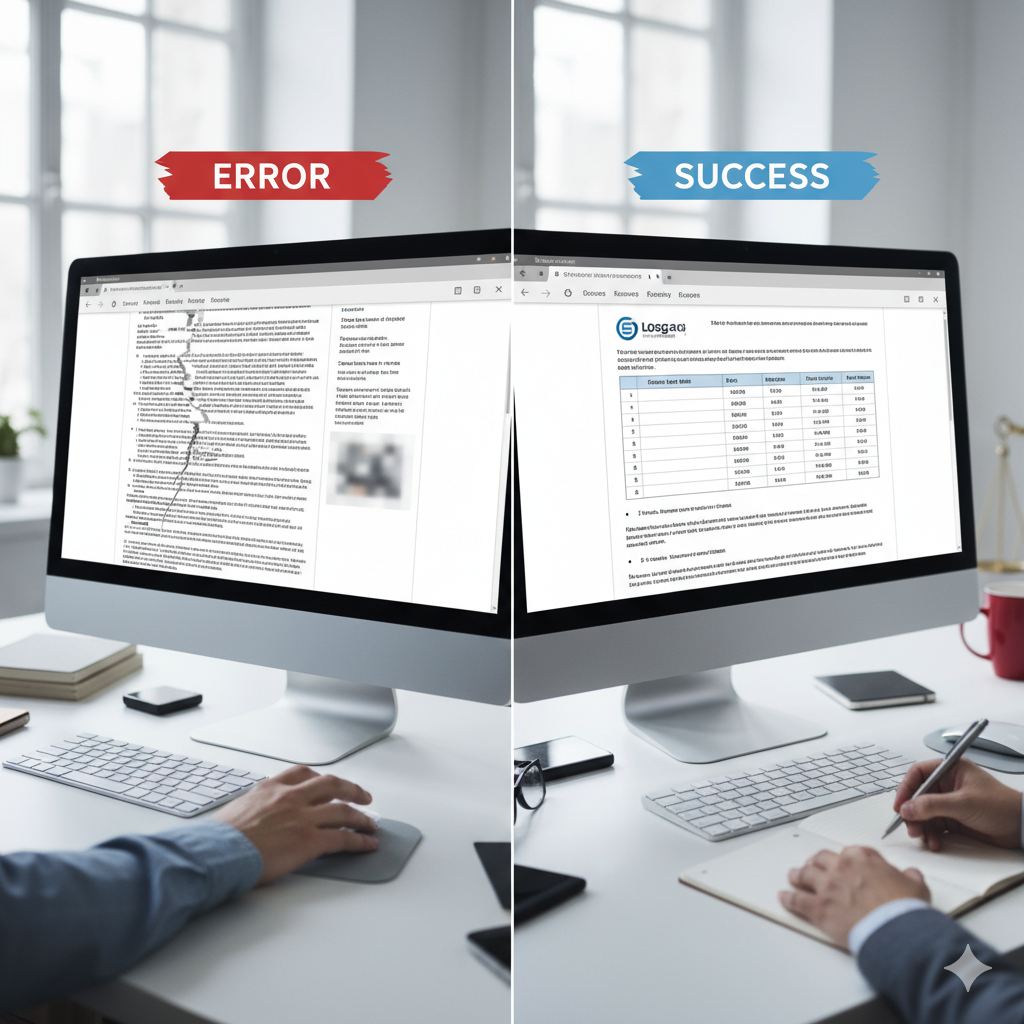
You’ve been there. You have a beautifully designed, perfectly structured PDF—a report, a resume, a legal contract. You need to make a few quick edits, so you run it through an online converter.
And what comes out is a digital train wreck.
Tables are shattered, fonts are unrecognizable, images have drifted to another dimension, and the entire layout is a chaotic mess. You’re now facing hours of frustrating manual work, defeating the entire purpose of a “quick” conversion.
Sound familiar? The good news is, you’re not alone, and it’s not your fault. The bad news is that most free online tools just aren’t smart enough to handle complex documents.
In this guide, we’ll dive deep into why this happens and give you actionable, expert-level tricks to fix the 5 most common formatting nightmares. More importantly, we’ll show you how to avoid them altogether.
First, Why Does Formatting Break? (The Quick Explanation)
The core of the problem lies in a fundamental difference between PDF and Word documents.
- A PDF is like a digital photograph of a document. It cares about the exact placement of letters, lines, and images on a page (
xandycoordinates). It doesn’t truly understand “paragraphs” or “tables.” - A Word Document (.docx) is a flowing, reflowable document. It understands structures like paragraphs, tables, and columns. It’s designed to be edited and have its content move around dynamically.
When a basic converter tries to turn the “photograph” into a “flowing document,” it has to guess. It sees a block of text and says, “Uh, I guess this is a table?” The results are often disastrous. Advanced converters use sophisticated AI and layout recognition to make intelligent guesses, but the challenge remains.
The 5 Culprits of Bad Formatting & Their Fixes
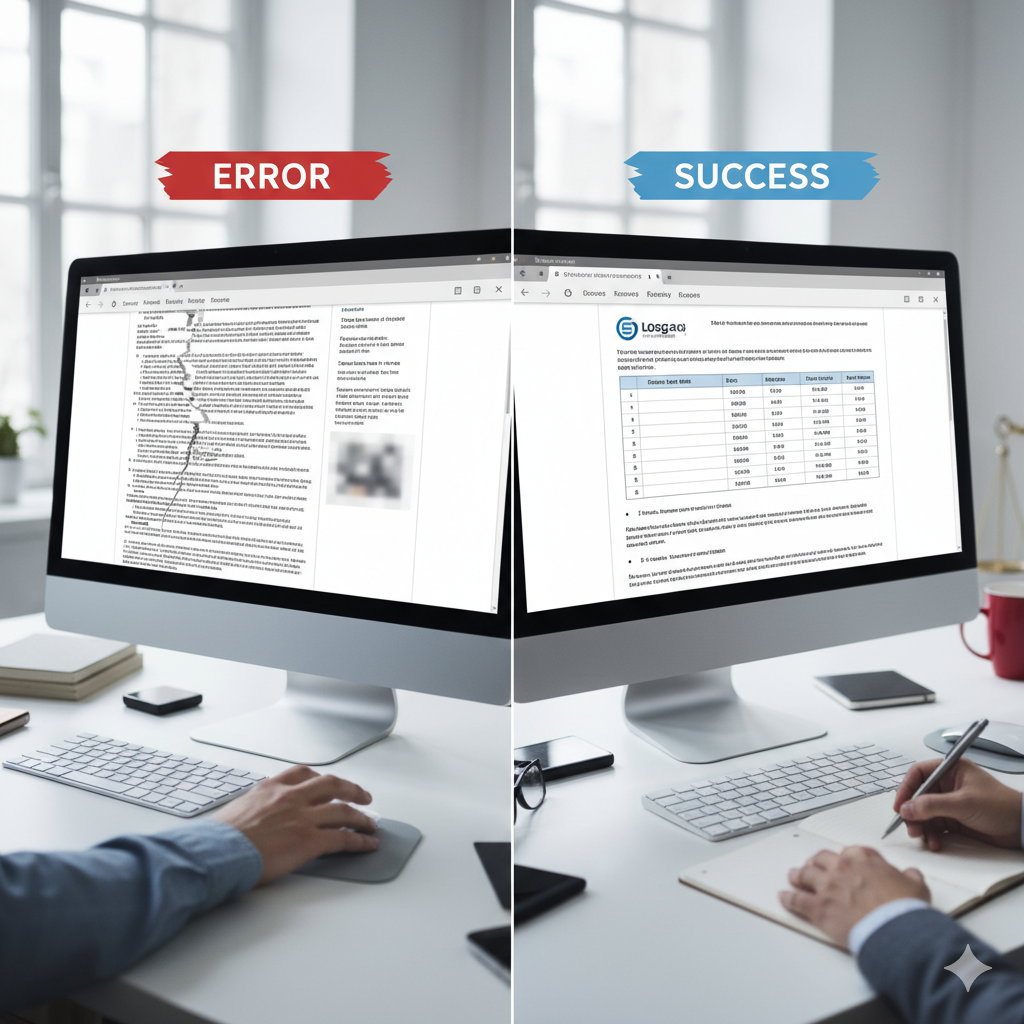
Here are the most common issues and how you can deal with them, both the hard way and the easy way.
The Table Catastrophe: Jumbled Columns & Rows
The Problem: Your perfectly organized table in the PDF is now a jumble of text boxes and random line breaks in Word.
Why it Happens: As mentioned, a PDF doesn’t have “tables,” only lines and text positioned to look like a table. Basic converters fail to reconstruct this structure.
- The Manual Fix (The “Excel Trick”): This takes a minute but works surprisingly well. Instead of pasting the jumbled text into Word, paste it into a blank Microsoft Excel spreadsheet first. Excel is brilliant at recognizing column and row structures. Once it’s organized in Excel, copy the table again and paste it into Word. It will retain its structure far more accurately.
- The 1-Click Fix: A high-quality converter uses table recognition technology. It analyzes the visual structure and rebuilds a real, editable Word table automatically. pdf2word.net’s advanced engine is specifically trained to handle complex financial and scientific tables.
The Font Freakout: Unrecognizable or Incorrect Text
The Problem: The professional font you used in your PDF has been replaced with Times New Roman or another default font, throwing off the entire look and page count.
Why it Happens: The font used in the PDF might not be installed on your computer, or it was embedded in a way the converter couldn’t extract.
- The Manual Fix: Identify the original font from the PDF. If it’s a standard font, install it on your system. If you can’t, you can use Word’s “Find > Replace > Replace Fonts” feature to systematically replace the incorrect font with one you prefer.
- The 1-Click Fix: Premium converters maintain a vast library of fonts and use intelligent substitution to find the closest possible match, preserving the original feel of your document.
Images Gone Wild: Misplaced, Resized, or Low-Quality
The Problem: Logos, charts, and photos are floating in the wrong places, are horribly pixelated, or are missing entirely.
Why it Happens: Basic converters often struggle with image anchoring and sometimes compress images to save processing power.
- The Manual Fix: This is painful. You have to manually screenshot each image from the PDF, save it, and then re-insert it into the Word document, trying to guess the original position and size.
- The 1-Click Fix: A professional-grade tool extracts images at their original resolution and uses layout analysis to anchor them correctly relative to the surrounding text.
The Phantom Menace: Unwanted Line Breaks
The Problem: Every single line ends with a hard return, so you can’t edit paragraphs properly. Deleting one line break messes up the whole paragraph.
Why it Happens: The converter saw each line in the PDF as a separate paragraph.
- The Manual Fix (The “Find & Replace” Pro-Tip): This is a lifesaver. In Word, open the “Find and Replace” tool (Ctrl+H).
- In the “Find what” box, type
^p. - In the “Replace with” box, type a single space.
- Click “Replace All”. This removes all paragraph breaks.
- Then, to restore the correct paragraph breaks, use “Find and Replace” again. Find
^p^p(two paragraph marks) and replace with one^p. Repeat until all double breaks are gone.
- In the “Find what” box, type
- The 1-Click Fix: An intelligent converter analyzes the spacing between lines and sentences to correctly identify true paragraph endings, saving you this tedious cleanup.
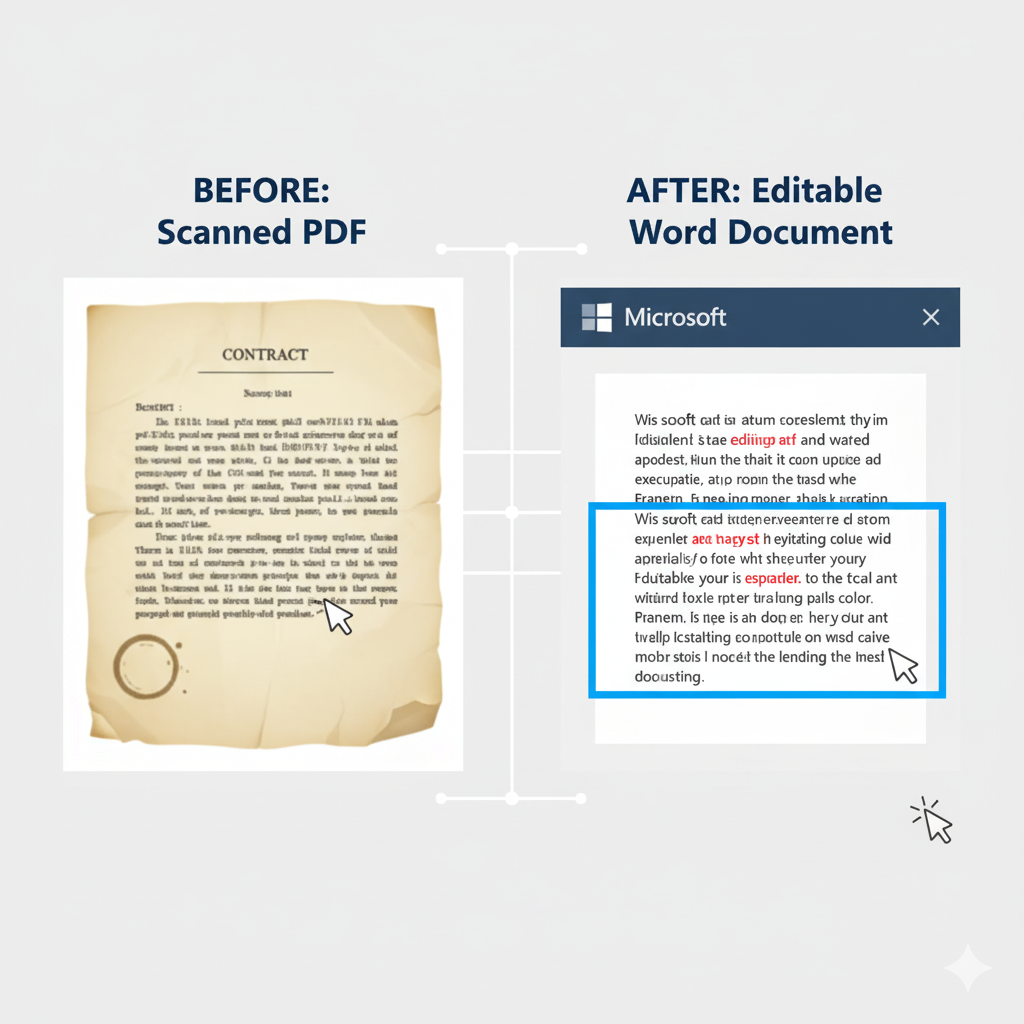
The Scanned PDF Nightmare: It’s Just a Picture!
The Problem: You convert a scanned document, and the Word file is either blank or contains a single, uneditable image of the page.
Why it Happens: Your PDF is not a text-based document; it’s an image. The converter has no text to extract.
- The Manual Fix: There is no manual fix other than retyping the entire document by hand.
- The 1-Click Fix (The Magic of OCR): This is where Optical Character Recognition (OCR) technology is essential. An OCR-powered converter scans the image for letter shapes, recognizes them as text, and builds an editable Word document from them. pdf2word.net includes a powerful OCR engine for converting scans and photos into fully editable text.
Stop Wasting Time Fixing Documents. Start Working on Them.
You now have the expert knowledge to manually fix almost any formatting issue.
But ask yourself: is that really the best use of your valuable time?
Instead of playing digital Tetris with text boxes and images, you could get a perfect, editable Word document in under 30 seconds. pdf2word.net was built to solve these exact frustrations, using advanced AI, layout recognition, and a powerful OCR engine to deliver clean, accurate, and ready-to-edit documents every time.
[Try Our Free PDF to Word Converter Now!]
Converting a PDF to Word shouldn’t be a gamble. By understanding the common pitfalls and choosing a tool designed for quality and accuracy, you can finally make the process seamless and frustration-free. Give your keyboard a break and let the right technology do the heavy lifting.