How to Convert PDF to Word Using Google Docs (and Why It Fails)
You have a PDF file. You don’t need complex software; you just need to make a few quick edits. Your first thought is probably: “Can’t I just open it in Google Docs?”
The answer is yes, you can. Google Docs has a hidden, built-in feature that can handle a basic PDF to word convert task. It seems like the perfect free solution.
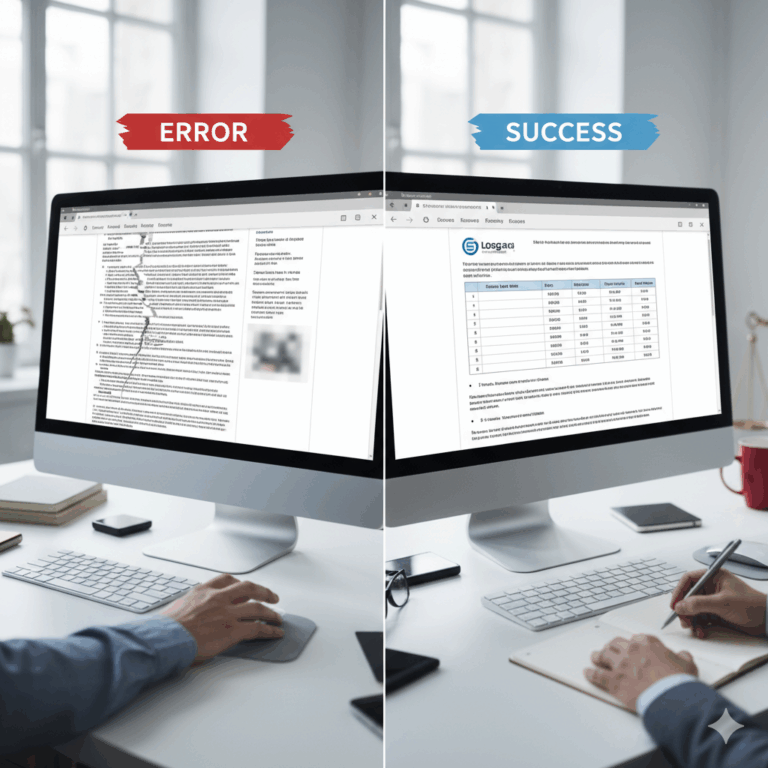
However, if you’ve ever tried this, you’ve likely faced a frustrating reality: your beautiful, well-formatted PDF—with its perfect tables, columns, and images—suddenly looks like a complete mess.
To help you solve this exact problem, in this guide, we’ll first show you the “official” way to convert a PDF to Word using Google Docs, explain why it fails so often, and then show you a 1-click alternative for a perfect, layout-preserving conversion every time.
The “Official” Way: How to Convert PDF to Word in Google Docs
The process itself is simple, but it’s not obvious because it happens inside Google Drive, not Google Docs.
- Log in to Google Drive. Go to drive.google.com.
- Upload Your PDF. Click the “New” button in the top-left corner, select “File upload,” and choose the PDF you want to edit.
- Open the PDF with Google Docs. Once your PDF is uploaded, find it in your Drive. Right-click on the file.
- From the menu, select “Open with” and then choose “Google Docs”.
- Wait for the Conversion. You will see a loading screen for a moment. Google Docs is now attempting to “read” your PDF (using its built-in OCR) and convert it into an editable Google Doc format.
After a few seconds, a new Google Doc will open in a new tab, containing the text from your PDF. You can now edit it, and then go to “File” > “Download” > “Microsoft Word (.docx)” to save it as a Word file.
The Problem: Why Does Google Docs Mess Up My PDF Formatting?
This is the moment the frustration begins. Your text is there, but the layout is destroyed. Why does this happen? Is it a bug?
No. It’s because Google Docs is a collaborative text editor, not a dedicated file converter. It was designed to handle reflowable text, not the fixed, complex layout of a PDF. When you ask it to perform a PDF to word convert task, it’s doing a job it was never truly designed for.
A Deeper Look: The “Snapshot” vs. “Reflowable” Problem
To understand why this fails, think of the file types:
- A PDF (Portable Document Format) is like a “digital photograph” or a “snapshot” of a document. Its primary goal is to ensure the document looks exactly the same on any screen or printer. It cares deeply about where things are placed—every line, image, and character has a precise coordinate.
- A Word (.docx) file is a “reflowable” document. Its primary goal is to be easily edited. The text “flows” to fill the page. If you change the font size, the whole document adjusts.
When Google Docs tries to convert a PDF, it has to guess where paragraphs begin and end, how columns relate to each other, and whether a group of lines is a table or just text. It’s trying to turn a fixed snapshot into a fluid document, and it usually guesses wrong.
Here are the most common formatting errors you will see:
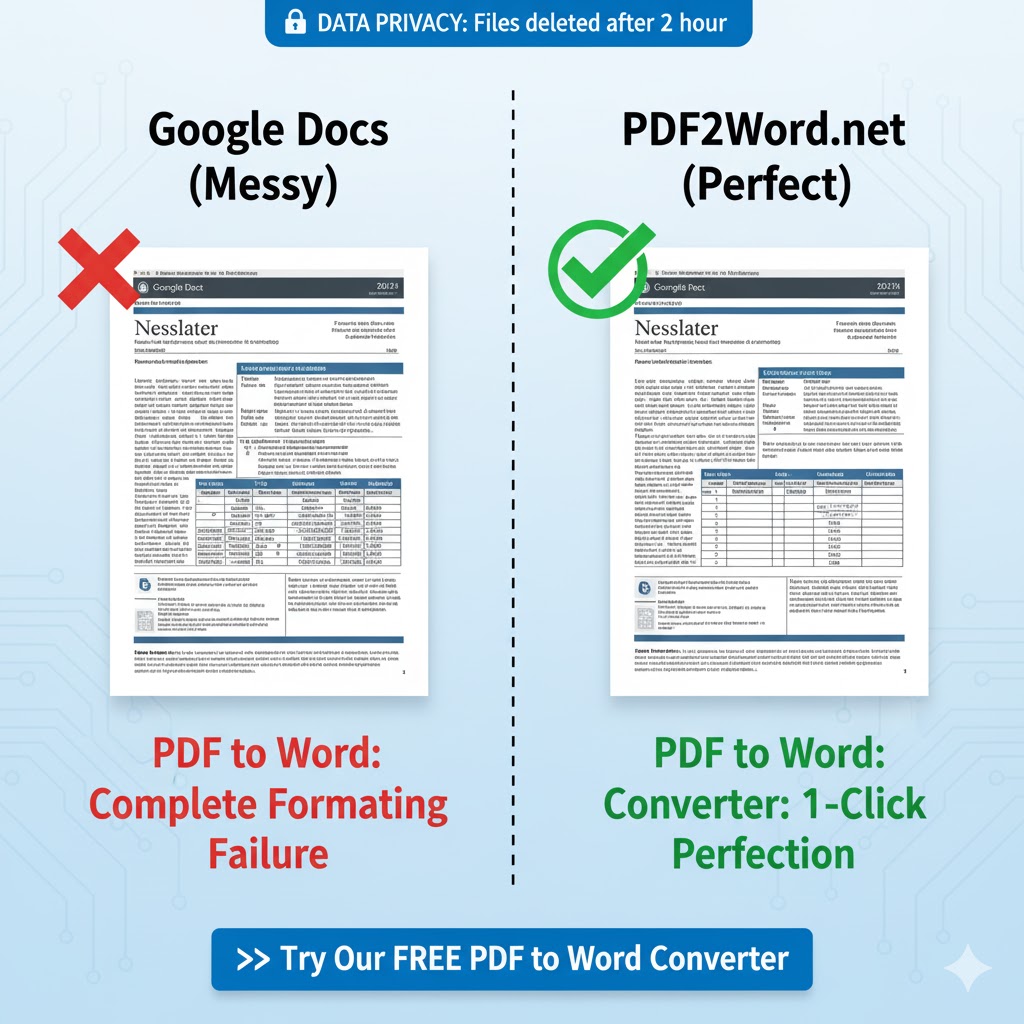
- Complete Table Destruction: Google Docs is notoriously bad at handling tables. It often breaks them apart, merges cells incorrectly, or converts them into a single, jumbled stream of text.
- Messed Up Columns & Layout: If your PDF has a multi-column layout (like a resume or newsletter), Google Docs will often merge everything into one long, confusing column.
- Images and Fonts Shift: Images will be pushed to the wrong pages, logos will disappear, and Google Docs will substitute any fonts it doesn’t have, ruining your document’s professional look.
- Lost Headers & Footers: Page numbers, dates, and confidentiality notes in the header or footer often get pulled into the main body of the text, or disappear entirely.
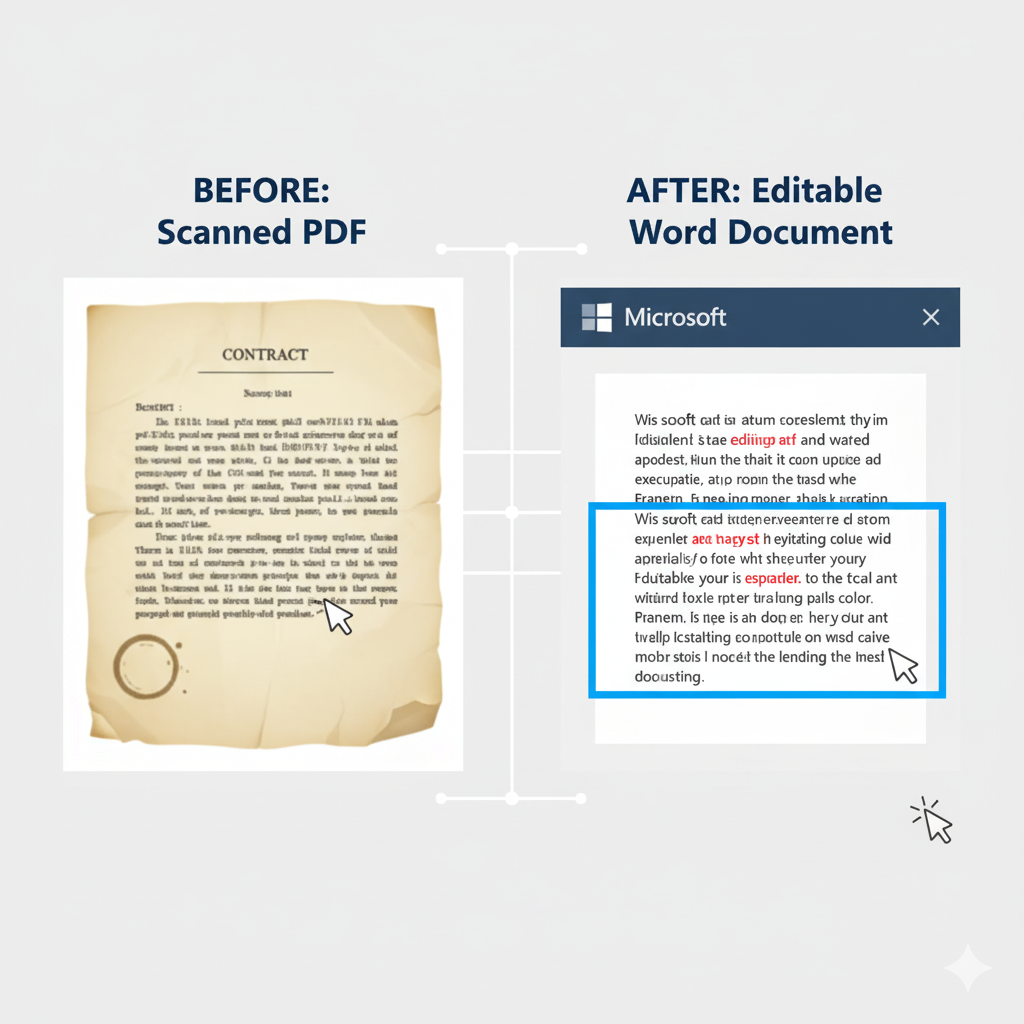
- Fails on Scanned PDFs: If your PDF is a scanned image, Google’s basic built-in OCR is often not powerful enough. It can return jumbled, unusable garbage text.
The 1-Click Solution: For When Formatting Actually Matters
Google Docs is fine if you’re trying to extract a single paragraph of text from a simple, one-column PDF.
But for anything important—contracts, resumes, financial reports, academic papers, or invoices—you need a specialized tool that was built for one job: a perfect PDF to word convert process.
A dedicated converter like PDF2Word.net isn’t a text editor. It’s a powerful layout reconstruction engine.
How a Professional PDF to Word Converter Works (in 3 Steps)
Unlike the multi-step Google Drive method, a dedicated tool is built for speed and simplicity. The entire process is just:
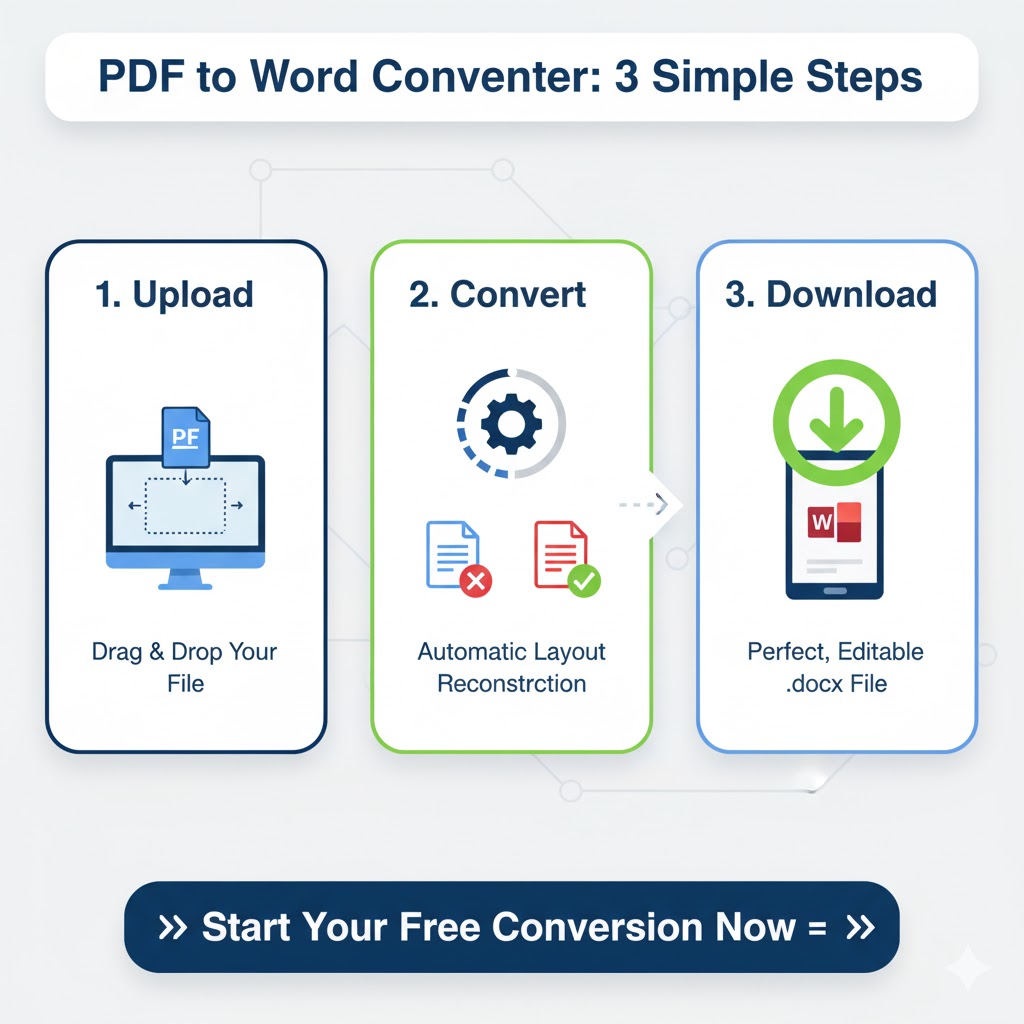
- Upload: Drag and drop your PDF file (or files) onto the converter.
- Convert: Click the “Convert” button. The engine analyzes your file’s structure.
- Download: In seconds, download your perfectly formatted, fully editable Word .docx file.
When you use a professional PDF to word converter, you get:
- Perfect Table Conversion: Our tool understands tabular data. It rebuilds your tables as fully editable Word tables, cell by cell.
- Layout Preservation: It keeps columns, headers, footers, and image placements exactly where you put them.
- Font and Image Integrity: Your images and logos stay in place, and your original font styles are preserved.
- Active Hyperlink Preservation: All original hyperlinks in your PDF remain active and clickable in the new Word document.
- Powerful OCR Engine: For scanned documents, our tool uses a high-accuracy engine specifically designed for OCR, delivering clean, editable text every time. (We even have a full guide on converting scanned PDFs).
Stop Fixing, Start Editing
Instead of spending 30 minutes in Google Docs trying to fix a broken layout, you can get a perfect, editable Word file in 10 seconds.
[>> Try Our Free & Accurate PDF to Word Converter Now <<]
Frequently Asked Questions (FAQ)
Q: Why can’t I edit my PDF in Google Docs directly?
A: Google Docs cannot edit a PDF file directly. It must first convert it into its own Google Doc format. You must use the “Open with” > “Google Docs” method. If you just double-click the PDF in Google Drive, it will only open as a read-only preview.
Q: How do I convert PDF to Word without losing formatting for free?
A: The best way is to use a dedicated, high-quality converter. While Google Docs is free, it fails on formatting. A tool like PDF2Word.net is also free for standard conversions and is specifically designed to preserve your layout, tables, and fonts perfectly. It’s the most reliable way to convert PDF to word online.
Q: Will converting my PDF to Word affect my original PDF file?
A: No. A good PDF to word converter never modifies your original file. Your PDF stays safe and untouched. The converter simply reads your PDF and creates a brand new, editable .docx file based on it.
Q: Can I use a PDF to word converter on my phone (Android or iPhone)?
A: Yes. A high-quality online converter like PDF2Word.net is web-based, meaning it works in any modern browser. You can easily convert PDF to Word on your mobile device without needing to download any app.
Q: Is it safe to convert my PDF using an online tool?
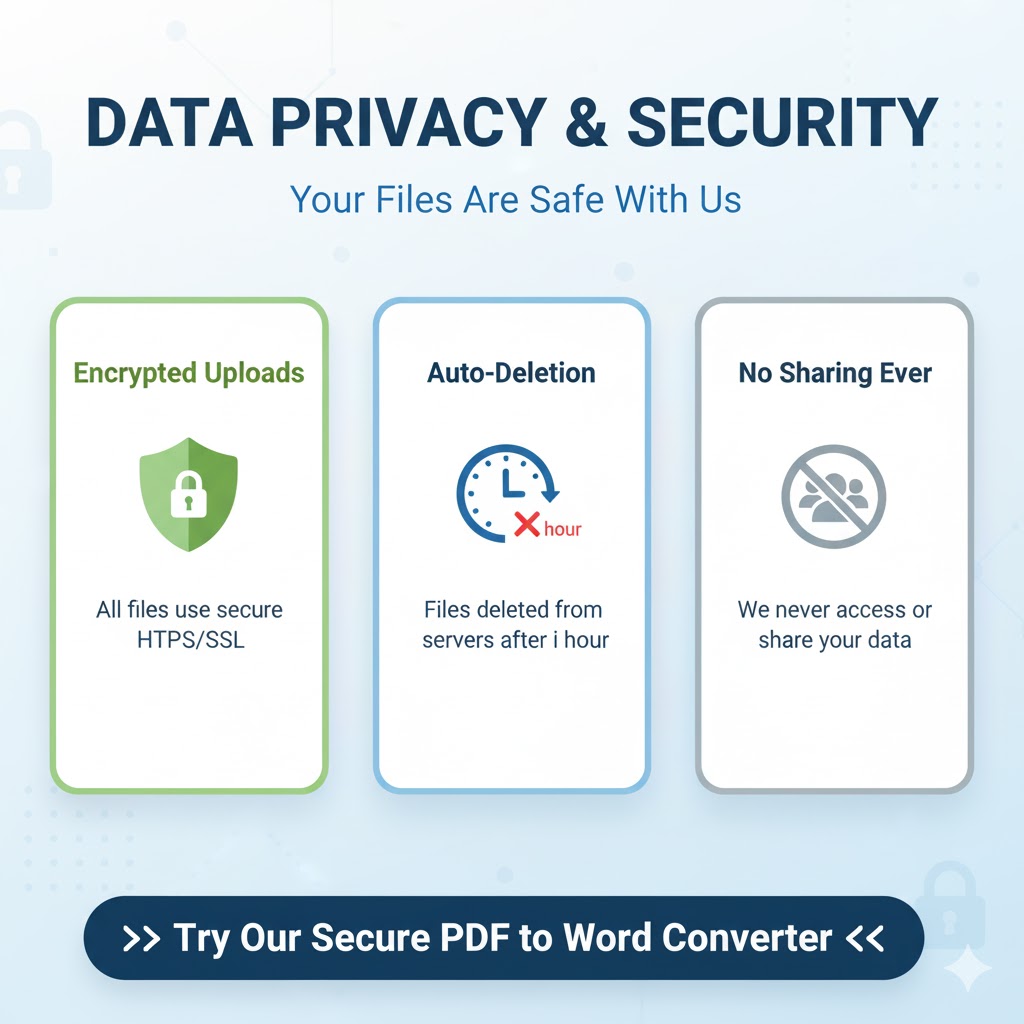
A: This is a valid concern. You should only use tools that respect your privacy. We are a security-focused service. All files uploaded to PDF2Word.net for any PDF to word convert task are processed, and then automatically deleted from our servers after max 1 hour. We never access, share, or look at your files.
Conclusion: Use the Right Tool for the Job
While Google Docs is a fantastic tool for writing and collaborating, it is simply not a professional PDF to word converter. It’s like trying to use a screwdriver to hammer a nail.
You can use it to extract simple text, but you will almost always pay the price in broken formatting and wasted time.
Your time is valuable. Stop fighting with broken tables and jumbled columns. For a conversion that just works, saving you time and frustration, a dedicated tool is the only answer.
[>> Get a Perfect Conversion in 1-Click with PDF2Word.net <<]